Haven't you notice that every posts up to this point are XML Publisher related? I just can get enough of this tools, i like discovering what this tool can do for me as a developer. If using Rowset Data Source in XMLP was too complicated for you, try using the PS Query as the Data Source. You don't need to create a code for sample data file and schema file because you can generate those files within PeopleSoft. Just replace the Rowset code in the XML Publisher Part 2 with this code;
/*fill prompt record*/
&rcdQryPrompts = &ReportDef.GetPSQueryPromptRecord();
If Not &rcdQryPrompts = Null Then
If Not Prompt(&ReportDef.GetDataSource().Name, "", &rcdQryPrompts) Then
Exit;
End-If;
&ReportDef.ProcessReport(&sTemplateId, %Language_User, %Date, &sOutputFormat);
End-If;
Showing posts with label ps query. Show all posts
Showing posts with label ps query. Show all posts
Saturday, May 31, 2008

Friday, May 30, 2008
XML Publisher Part 1
Probably y'all aware that the XML Publisher is the new reporting tools of PeopleSoft (version 8.9 and higher). I once read that this is the only reporting platform for Fusion Apps. The cool things about this are you only have single toolset, user can create their own layout, upgradable to Fusion, flexible, quick and easy. How does it work? By combining the Technical Task which is XML DataSource and Business Task which is Template Layout to the XML Publisher Engine, you can produce a report output in the form of MS Word (RTF), MS Excel, PDF, and HTML.
You can create a simple XMP Publisher report by answering these following questions:
How to setup XML Publisher?
How to create data sources?
How to create report templates?
How to define reports?
For starters, you need to add the XMLP Report Developer to your User Role. That will give your user access/security to Report Category, Design Helper, Data Source, Report Definition, Content Library, Template Translations, Query Report Viewer, Query Report Scheduler, and Report Repository. You also need to download the template design helper which is located to Reporting Tools > XML Publisher > Setup > Design Helper.
Define report categories; this is for row level security of the data. Located to Reporting Tools > XML Publisher > Setup > Report Category.
Now you must understand that XML Publisher retrieves data from different source (e.g. PS Query, RowSet, XML File, and XMLDoc Objects). In this article we will used the simplest form, the PS Query.


You can create a simple XMP Publisher report by answering these following questions:
How to setup XML Publisher?
How to create data sources?
How to create report templates?
How to define reports?
For starters, you need to add the XMLP Report Developer to your User Role. That will give your user access/security to Report Category, Design Helper, Data Source, Report Definition, Content Library, Template Translations, Query Report Viewer, Query Report Scheduler, and Report Repository. You also need to download the template design helper which is located to Reporting Tools > XML Publisher > Setup > Design Helper.
Define report categories; this is for row level security of the data. Located to Reporting Tools > XML Publisher > Setup > Report Category.

Now you must understand that XML Publisher retrieves data from different source (e.g. PS Query, RowSet, XML File, and XMLDoc Objects). In this article we will used the simplest form, the PS Query.
Assuming that you already have a query, you need to specify the query to create a data source. Fill in all the required fields, generate Sample Data File and Schema File by clicking the Generate link. 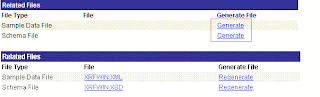

You can now create your Report Definitions. There are five pages in the Report Definition component, only the first three pages are required the last two pages are for more complex reporting (Reporting Tools > XML Publisher > Report Definition).


Now you’re ready to run the report thru Query Report Viewer by clicking View Report link (Reporting Tools > XML Publisher > Query Report Viewer).

Subscribe to:
Posts (Atom)